Media tutorial

Subscribe For Free Updates!

We'll not spam mate! We promise.

Showing posts with label LINUX MINT 16. Show all posts

2014-03-04

Create a local server in linux mint 16 (Lamp)


     Create a local server in linux mint 16 (petra), install Lamp (Linux Apache MySQL PHP).
In this  tutorial we will install apache, php5, MySQL and phpMyAdmin on Linux Mint 16.


Create a local server

Install apache 


Sudo apt-get install apache2 
 Verification:  in the browser :  http://localhost/  ( "it's work" if  installation completed successfully)

Install PHP5


sudo apt-get install php5 libapache2-mod-php5
Restart apache 


sudo /etc/init.d/apache2 restart


verification : create a php file to test and move it into.:
/ var / www / 
open :  localhost / test.php
Open the folder. / Var / www as root to copy or move the file in test.php.

Install MySQL

sudo apt-get install mysql-server

Create password


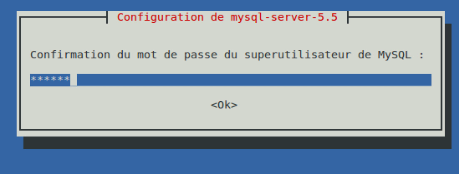
Confirm password


Install phpmyadmin

sudo apt-get install phpmyadmin

Select the web server to reconfigure automatically.
Choose automatic configuration
Password of the server administrator
Password MySQL connection
Confirmation du mot de passe mySQL
If you receive a 404 error when accessing: http://localhost/phpmyadmin: edit the file: apache2.conf
sudo gedit /etc/apache2/apache2.conf
add this line to the end of file : Include /etc/phpmyadmin/apache.conf restart appache :
 sudo /etc/init.d/apache2 restart
 http://localhost/phpmyadmin:
tutorial  video (french ) 

2014-01-04

Dual boot Linux Mint 16 (Petra) & Windows 8


Dual boot Linux Mint 16 (Petra) & Windows 8

Dual boot Windows 8.1 and Linux Mint 16 so  to get a boot menu like the one in the picture below:


For this boot menu, we will use a tool called EasyBCD to add the entered boot Linux Mint 16 (Petra) to Windows 8 or Windows 8.1 at the end of the installation of Linux Mint in a new partition HDD.


We will install linux mint 16  partition data (E :)

Put the CD / DVD Linux Mint 16 in the drive or create a USB installation media

and restart on CD / DVD or the bios is a key depending on your PC (eg F12 ==> Toshiba).

Boot on cd/dvd or usb 


  • Once started on the live DVD, click "install Linux Mint"

install-linux-mint-16

  • Select language and continue

install-linux-mint-16-langue

Partitioning :  the largest part
8-O
Select the partition or you will install Linux mint 16, mount point, file system ...

  • Select: Install Linux Mint alongside Windows 8

install-linux-mint-16- à coté windows8

  • Select: advanced partitioning tool

install-linux-mint-16-partitonnement

  •  configuration :

Partition sda3 : data(E:)
systèm of files ext4 , mount point : racine « /«  .
device of installed  program will start : /dev/sda2 
install-linux-mint-16-point-montage

  • Select "Install now" and continue,

install-linux-mint-16-patition2

  • Set the clock, regional settings, machine name and continue the installation.

install-linux-mint-16-user

  •  Wait for the installation and remove the cd / dvd drive and restart

install-linux-mint-16-copie
install-linux-mint-16-fin

Once the PC is started on Windows 8.1, open the EasyBCD tool (download at the end of the article)Add a new input => (operating system) Linux / BSDType: grub2, Name: Linux Mint 16, Partion: (E :) depending on your score. then Add
easyBCD-dualboot
At the next reboot we get the boot menu using the Windows boot sector 8.1, the two came Windows 8.1 and Linux Mint 16

Note: you can change the boot order avec easyBCD, reduce waiting time of automatic selection, change the grub2 on Linux Mint 16 to remove the wait time ........


VIDÉO TUTO FRENCH 


https://www.cookiepolicygenerator.com/live.php?token=6r4N5ff5QvgfNUc3bmSFlITlA6nCs4GQ